Easy Tech Tuts
How to Link Confluence With Jira 2026 Easily
By Impran M NLast checked against official docs
When documentation lives in Confluence and work lives in Jira, the two drift apart unless something connects them. Linking the two Atlassian products means a Jira work item can point straight at its spec, and a Confluence page can show the live status of the item it describes. This guide covers what actually needs setting up (often nothing, if both products already share a site), what to do when they don't, and the day-to-day habit of keeping pages and work items pointed at each other.
01Check whether Jira and Confluence already share a site
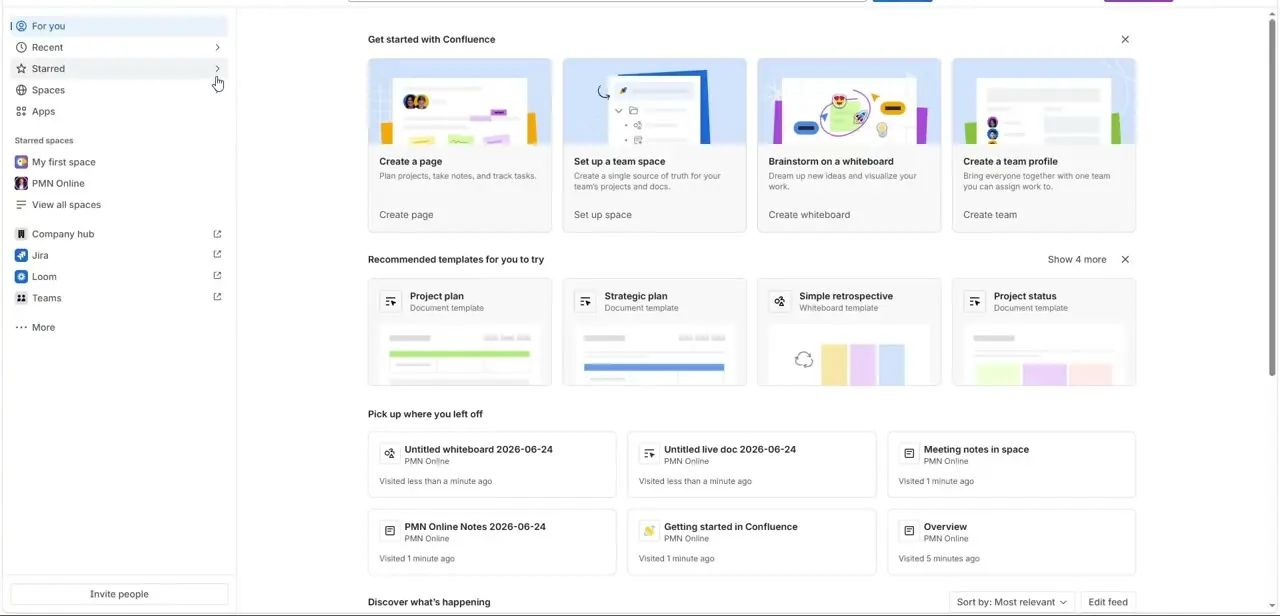
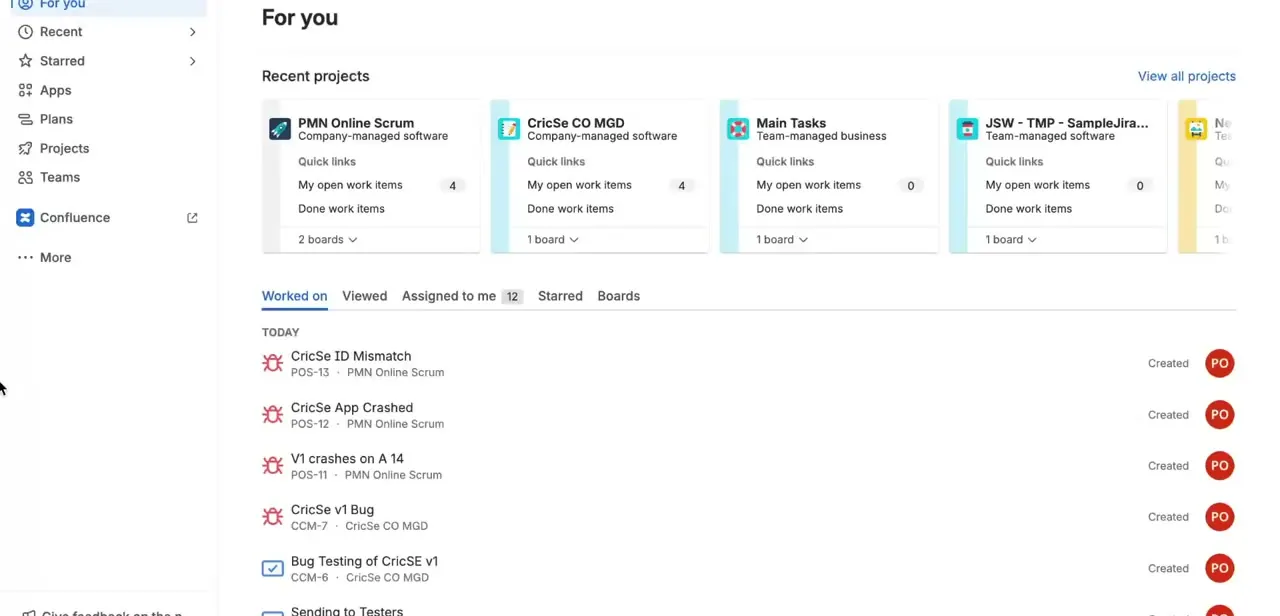
Open Confluence and look at the "For you" landing page. If Jira Software or Business projects on the same Atlassian domain already show up there as recent projects with open work-item counts, the two products are on one Cloud site.
According to Atlassian's own documentation, products deployed to the same Cloud site are connected through app links automatically — there is nothing to configure. If that's your situation, skip ahead to inserting a Jira link or macro in a Confluence page; the next few steps don't apply to you.
02If they're on separate sites, open Jira's app links screen
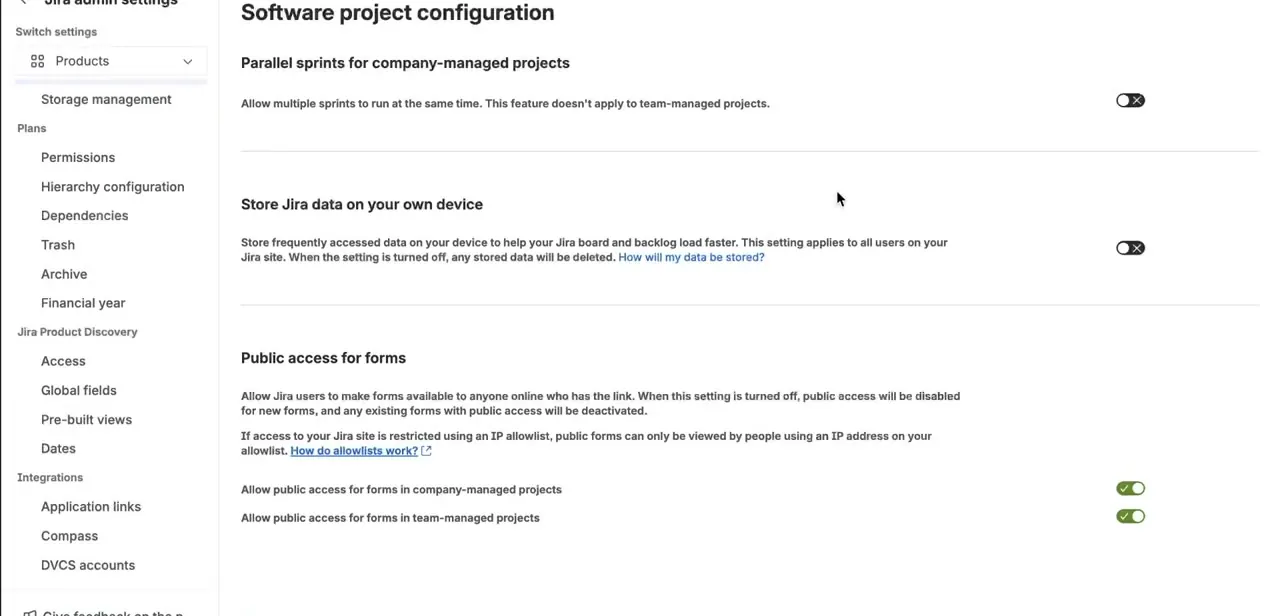
A manual link is only needed when Jira and Confluence sit on different Cloud sites, or when one of them is a self-managed Data Center instance. Atlassian's current admin interface puts this under Settings (the gear icon) > Jira apps > App Links.
Older instances, and this recording, show it filed under Integrations as "Application links," next to Compass and DVCS accounts — Atlassian has since reorganized this screen, so look in both places if one comes up empty. Either way, this page lists every external application currently linked to Jira.
03Create a direct app link to the other site
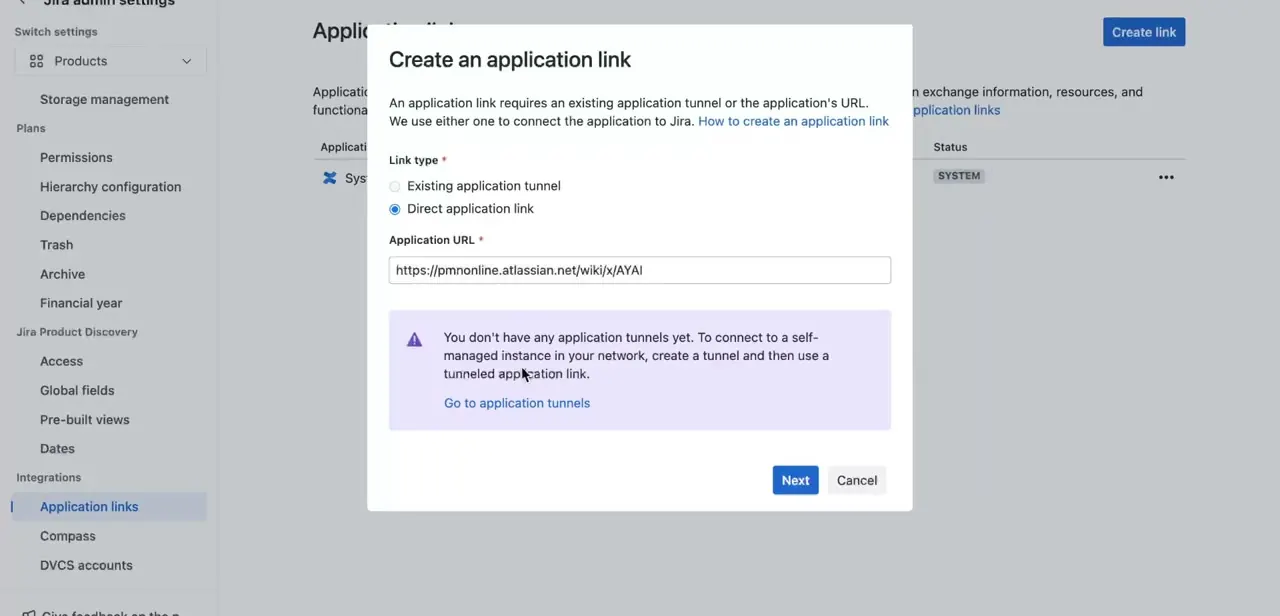
Start a new link and choose a direct app link, not a tunnelled one — a tunnel only applies to a Data Center instance sitting behind your own network. Paste the target site's URL (a Confluence Cloud site follows the pattern yoursite.atlassian.net/wiki) into the Application URL field and continue. Jira needs that address to be publicly reachable over HTTPS; it validates it and pulls basic details about the target automatically.
04Name the link and finish
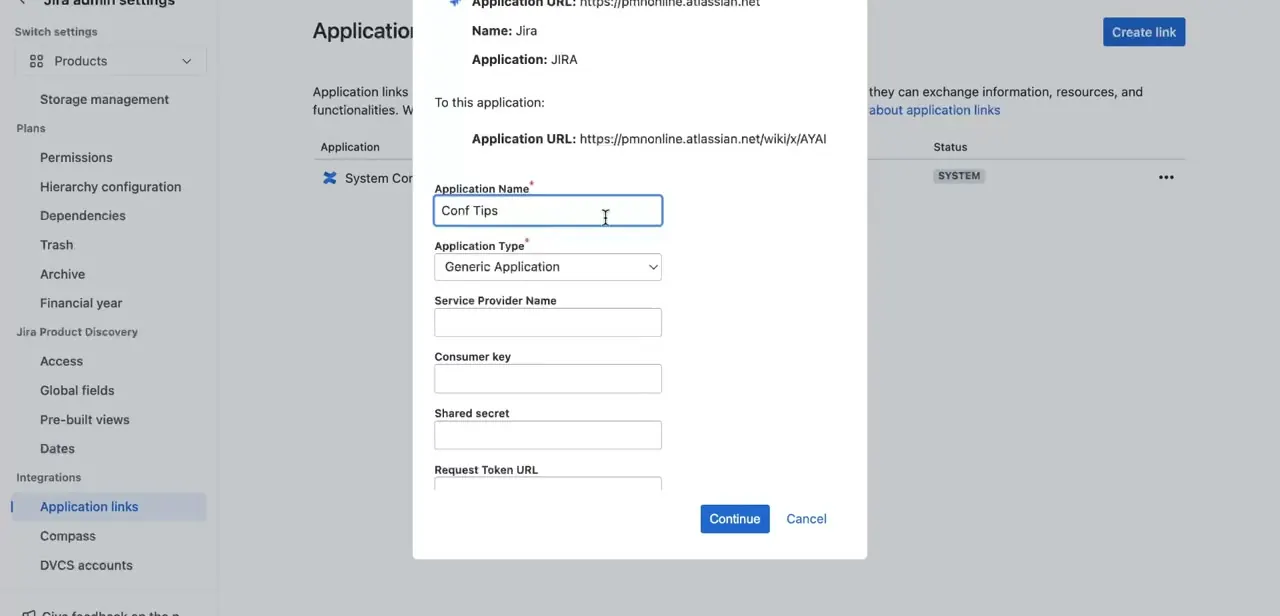
Give the link an Application Name your team will recognize later; Application Type defaults to Generic Application, which is correct here. Jira now picks the strongest authentication method the two apps both support on its own, typically OAuth or OAuth with impersonation if the sites share a user base, so the consumer key and shared secret fields below are leftovers from an older manual OAuth flow and can stay blank for a standard connection. Confirm, and the link is active immediately.
05Bring Jira content into a Confluence page
With a same-site connection (automatic) or an app link (manual) in place, paste a Jira work-item URL directly into a Confluence page and it converts on its own into a Jira work items macro showing live status. You can also open the macro browser or type /jira for a filtered list of items instead of a single one. It runs the other way too: open a Jira work item, use Link, and search by Confluence page title to attach that page to it — the reference shows up in the item's Links section from then on and stays live instead of going stale like a plain hyperlink.
06Make it a habit, not a one-off
A link only creates the possibility of a connection; someone still has to attach the right page to the right work item. A simple team convention works best: every epic gets linked to its planning or requirements page the moment it's created, and a major spec change gets a note back on the epic. Keep this up for a sprint or two and new team members find both the ticket and its context in either tool without asking around.
07Review links as projects evolve
Linked pages and work items don't correct themselves when a project reorganizes, a page gets archived, or an epic gets split. Build a short check into sprint retro or backlog grooming: does the linked doc on each active epic still match what the team is building. It takes a few minutes and heads off the slow drift where the Confluence link on a two-year-old epic points at a spec nobody has opened since the project's first week.
| Situation | App link needed? | Where to look |
|---|---|---|
| Jira and Confluence on the same Atlassian Cloud site | No — connected automatically | Paste a Jira URL into a Confluence page to confirm it resolves |
| Jira Cloud and Confluence Cloud on different sites | Yes | Jira Settings > Jira apps > App Links > Create link > Direct app link |
| Either product is Data Center or self-managed | Yes, possibly a tunnelled link | Jira admin > Integrations > Application links |
Based on Atlassian's current support documentation; exact menu wording varies by instance and update wave.
When it doesn't work
The Application links / App Links page doesn't list Confluence at all
Why: If Jira and Confluence already share a Cloud site, Atlassian connects them automatically and there's nothing to add manually.
Fix: Skip the setup and paste a Jira work-item URL into a Confluence page. If it resolves into a live macro, the two are already linked.
The direct app link won't validate the URL you entered
Why: A direct app link requires the target address to be publicly reachable over HTTPS in the yoursite.atlassian.net format. It can't reach a private or internal Data Center instance.
Fix: Double-check the URL is the live public address. If the target sits behind your own network, use a tunnelled app link instead — direct links don't support that case.
Frequently asked questions
Do I need separate Confluence and Jira licenses?
Yes, they're separate products, though many Atlassian plans bundle both under one site. Being on the same site is also what makes the connection automatic instead of something you configure.
Do I still need to set up an app link if Jira and Confluence are already on the same site?
No. Atlassian connects products on the same Cloud site through app links automatically. The manual setup in Jira's App Links screen is only for linking to a separate Jira or Confluence site, or to a self-managed Data Center instance.
Can I see linked Confluence pages from inside a Jira work item?
Yes. Once linked, related Confluence pages show up directly in the item's Links section, and a Jira work items macro embedded in a Confluence page shows live status in the other direction.
Does linking sync content between the two tools?
No. Linking connects the work item and page so you can navigate between them and pull live status through macros or smart links. The content in each stays managed and edited separately.
What's the difference between a direct app link and a tunnelled one?
A direct app link is a standard cloud-to-cloud connection to a publicly reachable site URL, which covers most setups. A tunnelled app link only applies when linking to a self-managed Jira or Confluence Data Center instance sitting behind your own network.
Sources and last check
Click path and screens come from a recorded walkthrough. Re-checked against Atlassian's official support documentation in September 2026, which corrected the article's core assumption: Jira and Confluence on the same Atlassian Cloud site are linked automatically, and the manual App Links setup described here only applies when the two products live on separate sites or one is Data Center. The admin menu path was also updated to reflect Atlassian's current Settings > Jira apps > App Links location, alongside the older Integrations > Application links layout shown in the recording.
About the author

Impran M N
I've been hooked on technology for as long as I can remember — especially the new tools and AI apps that seem to land every other week. Easy Tech Tuts is where I write up whatever I've just worked out: I do the task in the real product, record the screen, and turn it into the guide I wish I'd found first.